
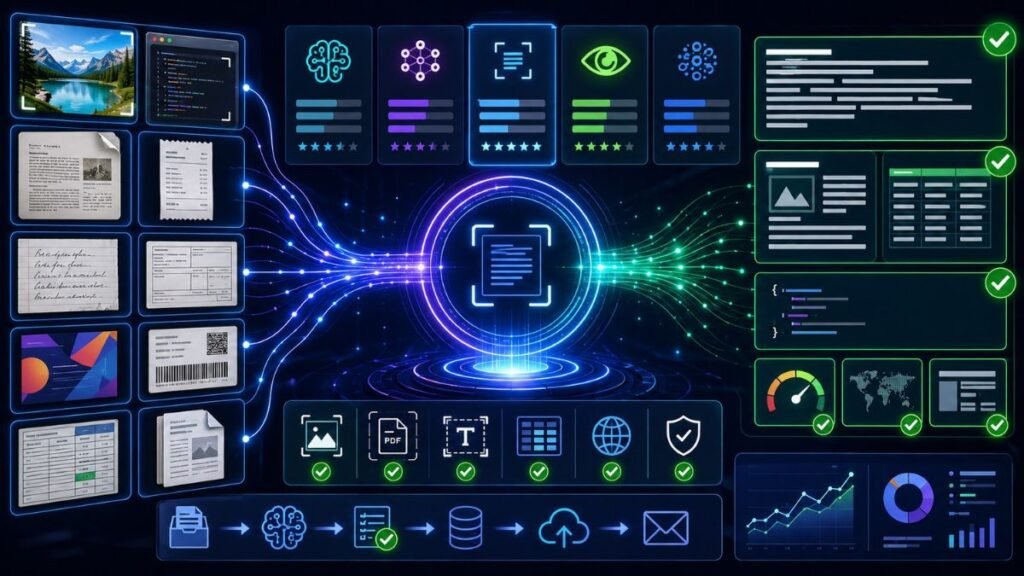
AI tools for image to text convert photos, screenshots, scanned PDFs, receipts, forms, labels, and document images into readable digital text. The best tool depends on whether you need quick OCR, developer APIs, handwriting recognition, table extraction, PDF editing, or enterprise document processing.
In Simple Terms
Image to text AI means software that reads text inside an image and turns it into copyable, searchable, or structured text. This is usually done with OCR, or optical character recognition. Modern OCR AI tools can do more than read printed words. Some can detect handwriting, preserve layout, extract tables, identify form fields, and return confidence scores.
For example, you can upload a photo of a receipt and extract merchant name, date, total, and line items. You can also capture text from a screenshot, scan a paper form, or turn an image-based PDF into searchable text.
Quick Comparison of AI Tools for Image to Text
| Tool | Best For | Main Strength | Main Trade-Off |
| Google Cloud Vision OCR | Developer OCR for images | Text detection from images and dense documents | Requires cloud/API setup |
| Google Document AI | Business document extraction | OCR plus forms, tables, entities, layout | Better for document workflows than simple OCR |
| Azure AI Vision / Document Intelligence | Enterprise OCR and document extraction | Printed/handwritten text, location, confidence | Azure ecosystem setup |
| Amazon Textract | AWS document OCR | Text, handwriting, tables, forms, signatures | Best inside AWS workflows |
| Adobe Acrobat OCR / AI Assistant | PDF OCR and document productivity | Convert scans/images into editable PDFs | Not mainly a high-volume extraction API |
| ABBYY FineReader / Vantage | Professional OCR and IDP | Strong OCR and enterprise document processing | Paid/professional workflow |
| Tesseract OCR | Free open-source OCR | Local OCR and developer control | Requires setup and tuning |
1. Google Cloud Vision OCR: Best Developer API for Image Text Detection
Google Cloud Vision OCR is a strong option for developers who need to extract text from images inside applications. Google’s documentation says Cloud Vision API provides OCR capabilities for text detection from images, including dense document text detection and handwriting extraction.
Use it for screenshot OCR, signs, labels, product images, app workflows, and image-based text detection. It is especially useful when you want an API that can be integrated into custom software.
The trade-off is that it is not a one-click consumer tool. Teams need to manage API credentials, pricing, storage, privacy, and downstream handling of extracted text.
2. Google Document AI: Best for Structured Document Extraction
Google Document AI is better when image-to-text is part of a larger document workflow. Google Cloud says its OCR tools can work as a unified suite through Document AI or through individual APIs, and that its OCR can understand, organize, and enrich data into business-ready insights.
Use Google Document AI for invoices, forms, receipts, bank statements, contracts, and scanned PDFs where layout matters. It is useful when the goal is not only extracted text, but structured fields, tables, and document metadata.
The trade-off is that it may be more than you need for simple image-to-text conversion.
3. Azure AI Vision and Azure Document Intelligence: Best for Microsoft-Centered OCR
Azure offers OCR capabilities through Azure AI Vision and Document Intelligence. Microsoft documentation says the Read OCR model is available in Azure Vision and Document Intelligence, with support for printed and handwritten text extraction, location data, confidence scores, mixed languages, and container deployment for on-premises scenarios.
Azure Image Analysis Read is useful for external images such as labels, street signs, and posters, while Document Intelligence is better for document-style files and structured extraction. Microsoft’s documentation notes that Azure Image Analysis v4.0 Read is optimized for general images and real-time user experience scenarios.
Choose Azure if your organization already uses Microsoft cloud, compliance, security, or workflow tools.
4. Amazon Textract: Best for AWS-Based Document OCR
Amazon Textract is a strong option for teams using AWS. AWS describes Textract as an ML service that automatically extracts text, handwriting, layout elements, and data from scanned documents. It also goes beyond simple OCR by identifying and extracting specific data from documents.
Use Textract for scanned PDFs, forms, invoices, receipts, tables, and documents stored in AWS. Its pricing documentation notes that the Detect Document Text API extracts text and handwriting, while Analyze Document includes Forms, Tables, Queries, and Signatures.
The trade-off is that Textract is best when your workflow already fits AWS services such as S3, Lambda, and Step Functions.
5. Adobe Acrobat OCR and AI Assistant: Best for PDF OCR Productivity
Adobe Acrobat is useful when your image-to-text workflow happens inside PDFs. Adobe says Acrobat can use automatic AI-powered text and layout recognition when scanned documents or images are converted into editable PDFs. Adobe’s online OCR tool also creates searchable PDFs and lets users copy or highlight recognized text.
Use Adobe Acrobat when you need to convert scanned PDFs into searchable or editable files, review documents, extract text manually, or use AI Assistant for PDF understanding. It is a good fit for office users, students, legal teams, and analysts.
The trade-off is that Acrobat is more of a PDF productivity environment than a developer OCR API or enterprise extraction pipeline.
6. ABBYY and Tesseract: Best for Professional OCR and Open-Source Control
ABBYY tools are useful for professional OCR and intelligent document processing. ABBYY FineReader is commonly used for accurate OCR, PDF conversion, and document handling, while ABBYY Vantage is closer to enterprise document automation.
Tesseract OCR is useful when you need a free, local, open-source OCR engine. It can work well for developer projects, experiments, and offline workflows, but it usually requires preprocessing, language configuration, and tuning to compete with modern cloud OCR on messy documents.
Use ABBYY when professional accuracy and enterprise workflows matter. Use Tesseract when local control and open-source flexibility matter more than plug-and-play ease.
OCR vs Image to Text AI vs Document AI
These terms overlap, but they are not identical.
| Term | Meaning | Best Use |
| OCR | Recognizes text in images | Basic extraction |
| Image to text AI | OCR plus AI-assisted extraction | Screenshots, photos, notes |
| Document AI | OCR plus layout, tables, forms, fields | Business documents |
| PDF AI | PDF summarization, Q&A, editing | Reading and productivity |
| IDP | Intelligent document processing | Enterprise automation |
If you only need to copy text from a screenshot, a simple OCR tool is enough. If you need invoice fields, table structure, and validation, choose a document AI or IDP platform.
How to Choose the Right AI Image to Text Tool
Start with the input type. Screenshots, scanned PDFs, handwritten notes, receipts, forms, and tables have different requirements. Then decide whether you need a simple app, cloud API, PDF tool, or enterprise workflow platform.
Check accuracy on your own files. Use blurry photos, rotated images, low-contrast scans, mixed languages, handwriting, tables, stamps, and real screenshots. Also check output format: plain text, searchable PDF, JSON, CSV, structured fields, or API response.
Common Mistakes to Avoid
Do not choose an OCR AI tool only by marketing claims. Test real documents and compare text accuracy, layout preservation, table extraction, language support, handwriting quality, confidence scores, privacy, and cost.
Another mistake is using simple OCR when the real need is document understanding. If your workflow requires extracting invoice totals, matching form labels to values, or validating fields, basic OCR will not be enough.
Suggested Read:
- What Is Multimodal AI? Simple Explanation With Examples
- Image to Text AI
- Document Understanding AI
- Document AI Tools
- Multimodal AI in Document Processing
- Best Image Understanding Models in 2026
- Image Grounding in AI
- Multimodal Evaluation
FAQ: AI Tools for Image to Text
What are the best AI tools for image to text?
Strong options include Google Cloud Vision OCR, Google Document AI, Azure AI Vision, Azure Document Intelligence, Amazon Textract, Adobe Acrobat OCR, ABBYY tools, and Tesseract OCR.
Which AI tool can extract text from images?
Google Cloud Vision OCR, Azure AI Vision, Amazon Textract, Adobe Acrobat OCR, ABBYY, and Tesseract can extract text from images, depending on the workflow.
What is the best OCR AI tool?
There is no single best tool. Google Cloud Vision is strong for developer image OCR, Amazon Textract for AWS document workflows, Azure for Microsoft ecosystems, and Adobe Acrobat for PDF OCR.
Can AI extract text from screenshots?
Yes. OCR AI tools can extract text from screenshots, but accuracy depends on resolution, font clarity, contrast, language, and layout complexity.
What is the difference between OCR and image to text AI?
OCR reads visible text. Image to text AI often adds layout handling, confidence scores, handwriting support, structure preservation, or integration with document workflows.
Which image to text AI tool is best for documents?
For documents, Google Document AI, Azure Document Intelligence, Amazon Textract, ABBYY Vantage, and Docsumo-style IDP tools are better than simple OCR converters.
Final Takeaway
The best AI tools for image to text depend on your workflow. Use Google Cloud Vision or Azure AI Vision for image OCR APIs, Amazon Textract for AWS document extraction, Google Document AI or Azure Document Intelligence for structured documents, Adobe Acrobat for PDF OCR, ABBYY for professional OCR, and Tesseract for open-source local control.
To continue learning, read Image to Text AI, Document Understanding AI, and Document AI Tools next.